
For Cubo customers that have opted for the 'Camera Smart Pro' Solution, you are able to view live footage from the vehicle.
Step 1.
To view camera footage live, locate the vehicle you wish to view the live footage for and then select the Live Video Stream Icon . (Flash Player is required to live stream the camera footage, as Google have recently disabled Flash Player by default you may need to enable this. Instructions on how to do this are further down this page.)
Step 2.
The Live Stream will load in a pop up window as shown below, to exit the stream click the 'x' in the top right corner:
Troubleshooting - Flash Player
- On your computer, open Chrome.
- Login to the Motia Telematics Portal https://telematics.motia.com/Main.aspx
- To the left of the web address, click Lock or Info
- At the bottom, click Site Settings.
- In the new tab, to the right of "Flash," click the Down arrow. Allow.
- Go back to the site and reload the page.
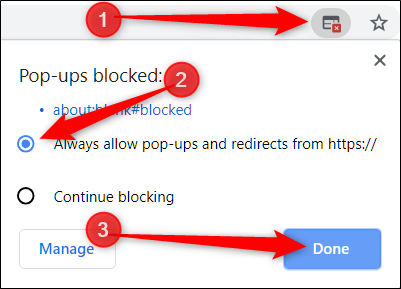
Troubleshooting - Popup Blocked
If the pop-up live stream player is blocked then it is likely that Chrome is blocking pop-ups.
1. Click on the pop-up blocked icon in the top right corner
2. Select to always all pop-ups and redirects
3. Click Done to complete. You may need to reload the page for the change to take effect.
Troubleshooting - User Permissions
If you receive errors when trying to stream or do not have the buttons to stream on your login then it is likely you do not have the appropriate permissions to access the footage. Please submit a support ticket (top right corner of this page), email fleetsupport@motia.com or call 02894 485 422 to speak to one of our team who can assist you.
Related Articles: Download Footage, Request DVR Image, Playback Video
Comments
0 comments
Article is closed for comments.