
Step 1.
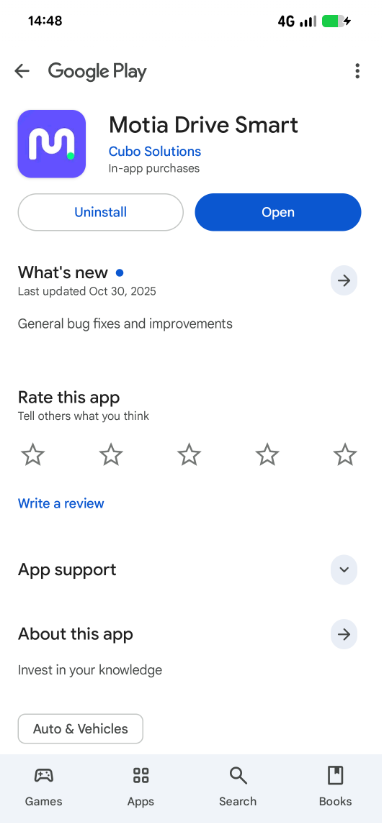
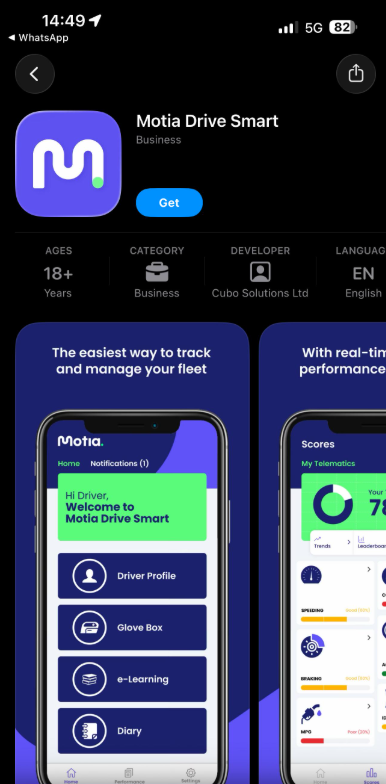
Depending on the operating system the driver is using, they can download the "Motia Drive Smart" app from the below links:
- For android = https://play.google.com/store/apps/details?id=com.cubo&pcampaignid=web_share
- For iOS = https://apps.apple.com/gb/app/cubo-drive-smart/id6470370631
Step 2.
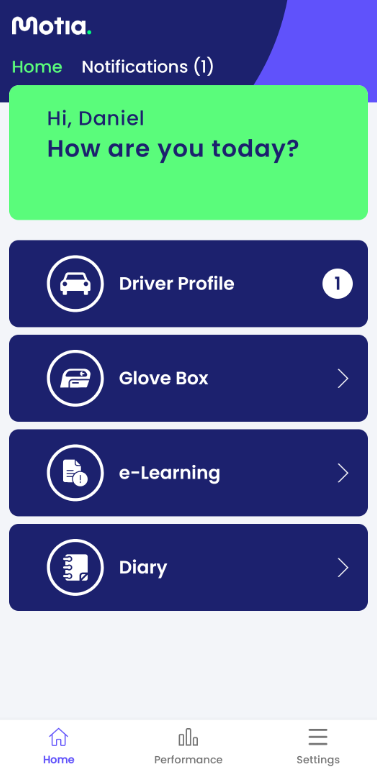
Once the driver has opened the app, they will be greeted with the below screen:
Step 3.
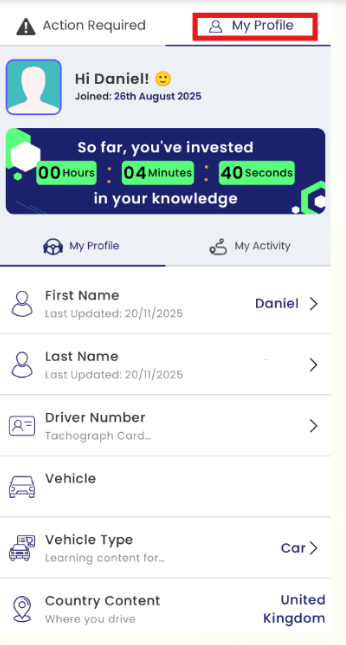
Under "Driver Profile" > "My Profile" section, the Driver must complete the below details.
First Name: Drivers first name
Last Name: Drivers Last Name
Driver Number:
- IF the driver is driving a LGV/HGV with a TACHOGRAPH & TACHOCARD - they will set this section to their DRIVER NUMBER as a UID.
- IF the driver is driving a CAR/VAN with NO TACHOGRAPH - the driver will use their REGISTRATION as a UID.
Vehicle Type:
- Van/LCV
- Car
- HGV/LGV
- PCV
Country Content: Location of Driver
Step 4.
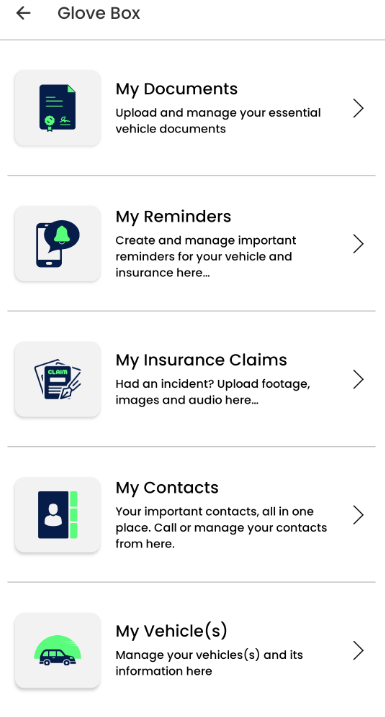
Within the "Glove Box" section, drivers can make use of this for:
- Documents
- Setting Reminders
- Insurance Claims
- My Contracts
- My Vehicles
- Working Time Calculators
Step 5.
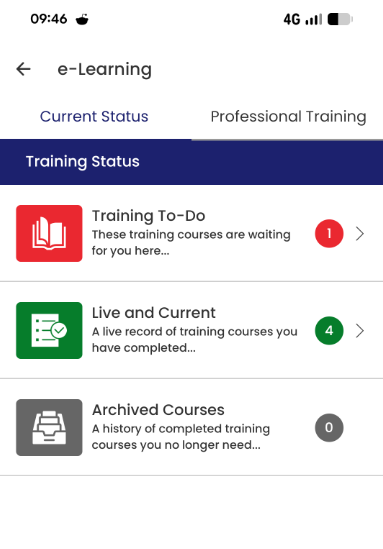
Within the "E-Leaning" section, customers can review training and courses that have been assigned for them to complete, as below;
Step 6.
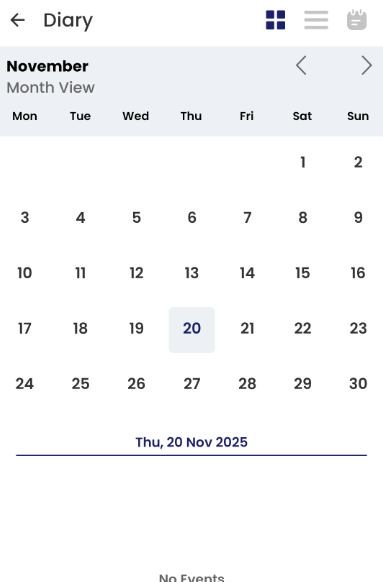
Within the "Diary" section, Drivers can use this as a calendar for reminders and planning.
Step 7.
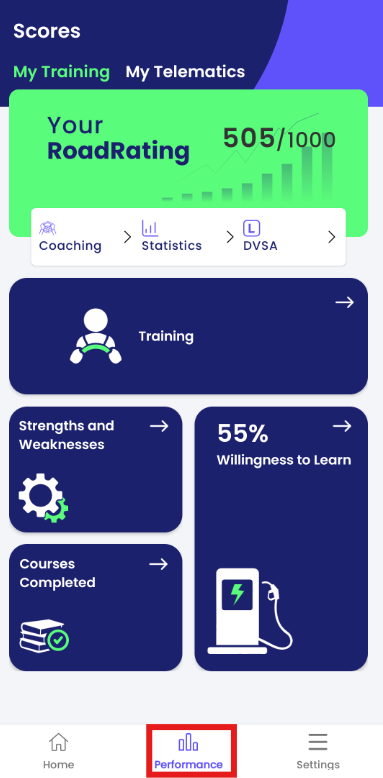
Within the "Performance" > "My Training" Tab - This gives the Driver a overview of their learning modules completed
Step 8.
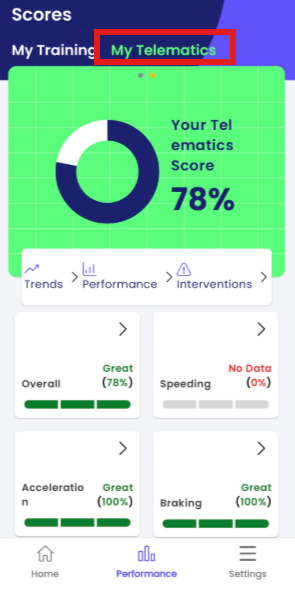
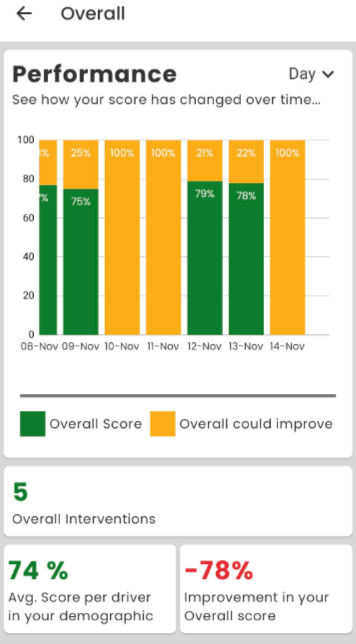
Once the Telematics data comes through via the API - Drivers can then review their "Driver Behaviour" events/interventions within the "My Telematics" tab.
Comments
0 comments
Please sign in to leave a comment.