
Fuel Smart Pro is installed alongside our Track Smart (Calamp) product, for an installation guide for Track Smart please click here
Fuel Smart Pro - Squarell
The Squarell Solid unit is Motia’s CAN-Bus telematics device used to read CAN data passively from the vehicle’s CAN-Bus network. The Squarell requires 3 main connections, power, CAN & RS232. The unit does not require an ignition switched power connection as the unit can determine the ignition state from the CAN connection.
The power and RS232 connections are the same for all installations and vehicles, but the CAN connections vary by manufacturer, model and vehicle year. It is important to ensure the correct CAN lines are connected too so if you require assistance with locating the correct CAN lines please first check our Squarell KB or contact the Motia Support Team on fleetsupport@motia.com or 02894 485 423
Please see below the 3 main connections for the Squarell unit, the blue and white fly leads are direct CAN connection so are not required. If additional CAN connectors or a DAP (driver assistance panel) are required these need to be connected to the Squarell JAE connector:
Please ensure to cable tie the CAN-Cliq connector so it cannot open during driving:
Connecting Additional CAN-Bus Connections
If you need to make a secondary CAN-Bus connection for J1708 (blue), ID180 (purple), ID190 (purple) or DAP (Driver Assistance Panel) then you need to connect to one of the SFD (Special Function Devices) ports on the Squarell Solid unit. There are 3 SFD ports and you can connect to any of them and the Squarell will automatically detect the SFD device. Please see below for the SFD connection points on the Squarell connector and also the cable colourings and pins for the SFD devices.
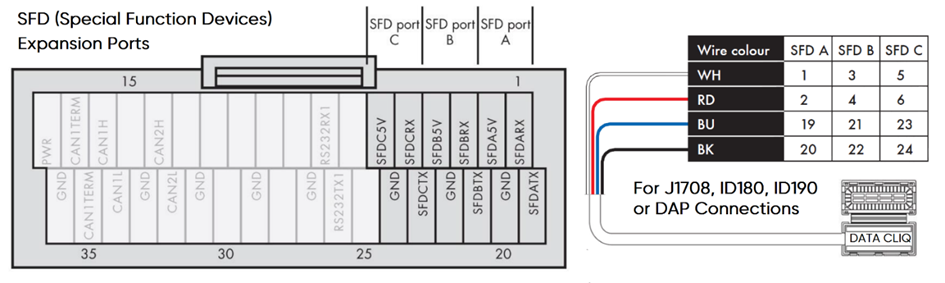
Squarell DAP (Driver Assistance Panel)
The DAP is connected to the Squarell via one of the SFD ports the same as a secondary Data Cliq. Please see pin out diagram below for the Squarell connector, and also the behaviours expected by the DAP in operation.
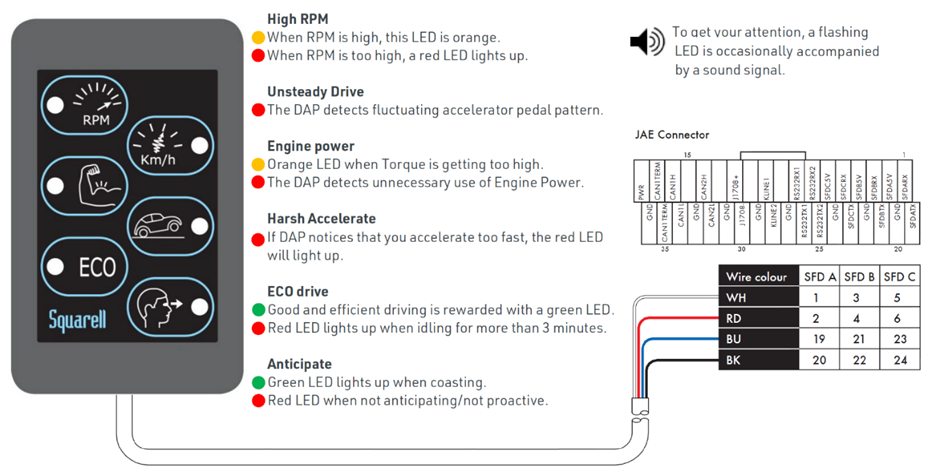
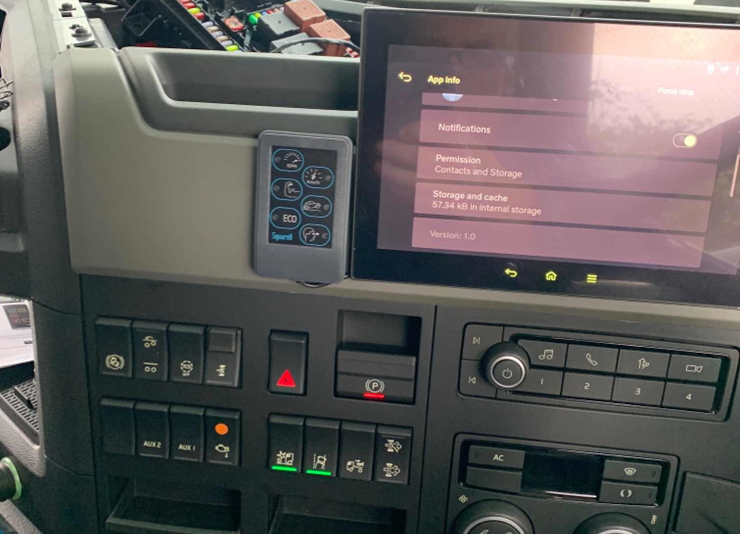
The DAP is mounted in the vehicle using the adhesive pads on the back of the unit as shown below. The easiest method to test the DAP is to leave the vehicle idling for 3 minutes and then the eco light will turn red.
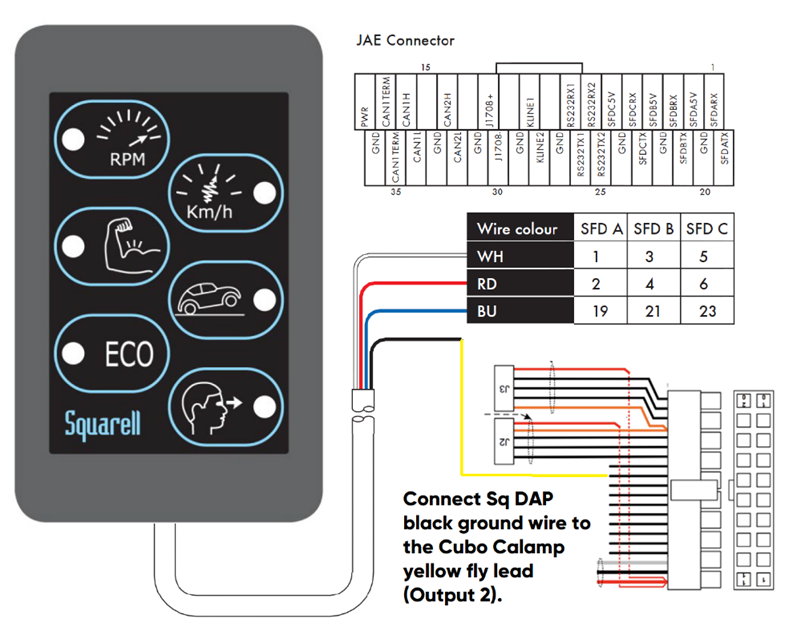
Squarell DAP with Calamp Output 2 Remote Power Control
If installing the DAP panel for a driver training requirement such as the CAF (Climate Action Fund) project then you need to cut the ground wire and connect it to Motia Calamp Output 2 (yellow fly lead) so that the DAP can be turned on and off remotely.
For further assistance please contact the Motia Support Team on fleetsupport@motia.com or 02894 485 423
**Please find a link below to download the pdf version of this article ***
Comments
0 comments
Article is closed for comments.